 Yakitsuke
 Your camera is
the darkroom.
Yakitsuke sends your RAF files back to your Fujifilm camera over USB, and the camera's own image processor develops them. These are real film simulations, not LUTs or presets imitating them.
Work through a whole roll at your desk: develop it with one recipe and fix each frame, save the sky and the shadows with Light & Shadow, write a look to C1–C7, or just describe it to an AI app.
Free during the beta · A Mac with Apple Silicon, macOS 13 or later · Supported on the X-T4, experimental on six more bodies
Not a FUJIFILM product, and not affiliated with FUJIFILM.

Three steps, and the camera develops.
Fujifilm bodies can convert RAW files themselves. Yakitsuke drives that converter from your Mac, so you can work through a whole roll at your desk.
Connect
Plug the camera in with a USB cable and set CONNECTION MODE to USB RAW CONV./BACKUP RESTORE. The setup guide walks you through it.
Pick a look
Choose a film simulation and the rest of the camera's settings (grain, Color Chrome, white balance, tone, clarity and more), or start from a saved recipe.
The camera develops it
A preview takes about half a second and a full-size file about 0.75 s on an X-T4. Save JPEG or TIFF next to your RAF. The original is never touched.
A recipe workbench for Fujifilm shooters.
Everything you would do in the camera’s own RAW conversion menu, at desk speed and in batches, and a few things the menu can’t do.
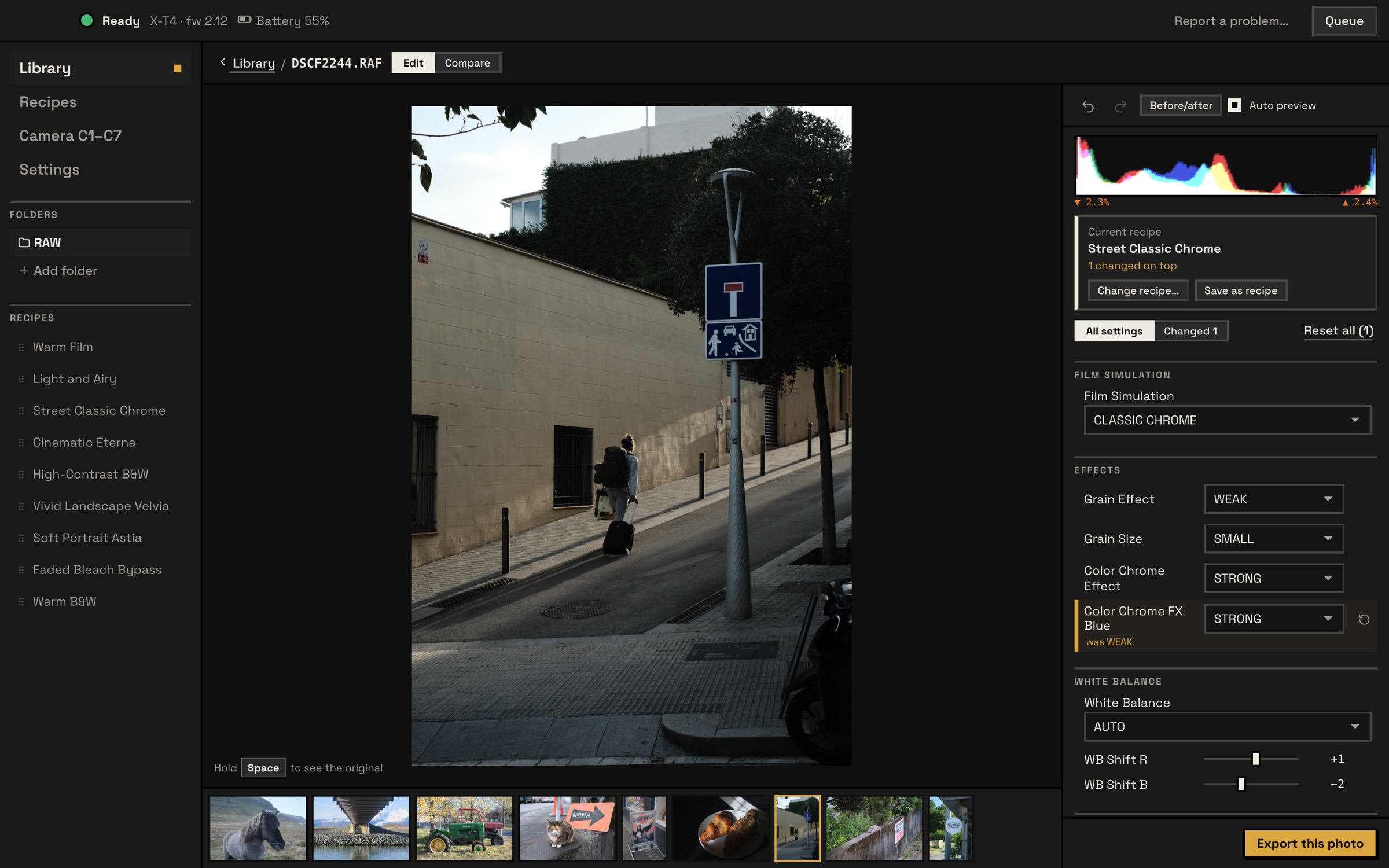
Rolls
Make a roll from one shoot and develop it with one recipe, then fix each frame’s exposure and white balance, the way a lab prints frame by frame. Preview the whole roll and export it in one go.
Light & Shadow
When the sky burns out or the shadows go black, the camera develops one or two more exposures and they’re combined: keep highlights, darken the sky, or balance both. See before and after
Recipe library
Nine sample looks to start from. Save your own, paste a recipe someone shared as text, or import and export FP1 files from FUJIFILM X RAW STUDIO.
Side by side
Develop the same photo several ways and compare them next to each other before you commit.
Batch queue
Queue the whole roll and keep working. If the cable comes loose, the queue picks up where it stopped.
C1–C7 custom slots
Read the camera's custom settings, write a recipe into a slot to shoot with it, and back up and restore all of them.
History
Every conversion is recorded with its settings, and JPEGs carry the recipe's name in their XMP metadata.
AI agents Optional
Let an AI app such as Claude Desktop preview variations and export with your recipes. It's off until you turn it on in Settings. See what it can do
Highlights and shadows, both developed by the camera.
Developing a RAF once often means choosing between the sky and the shadows. Light & Shadow asks the camera for one or two more renders at other exposures and keeps the best of each part of the frame. Everything it combines was developed by the camera, with the same film simulation.
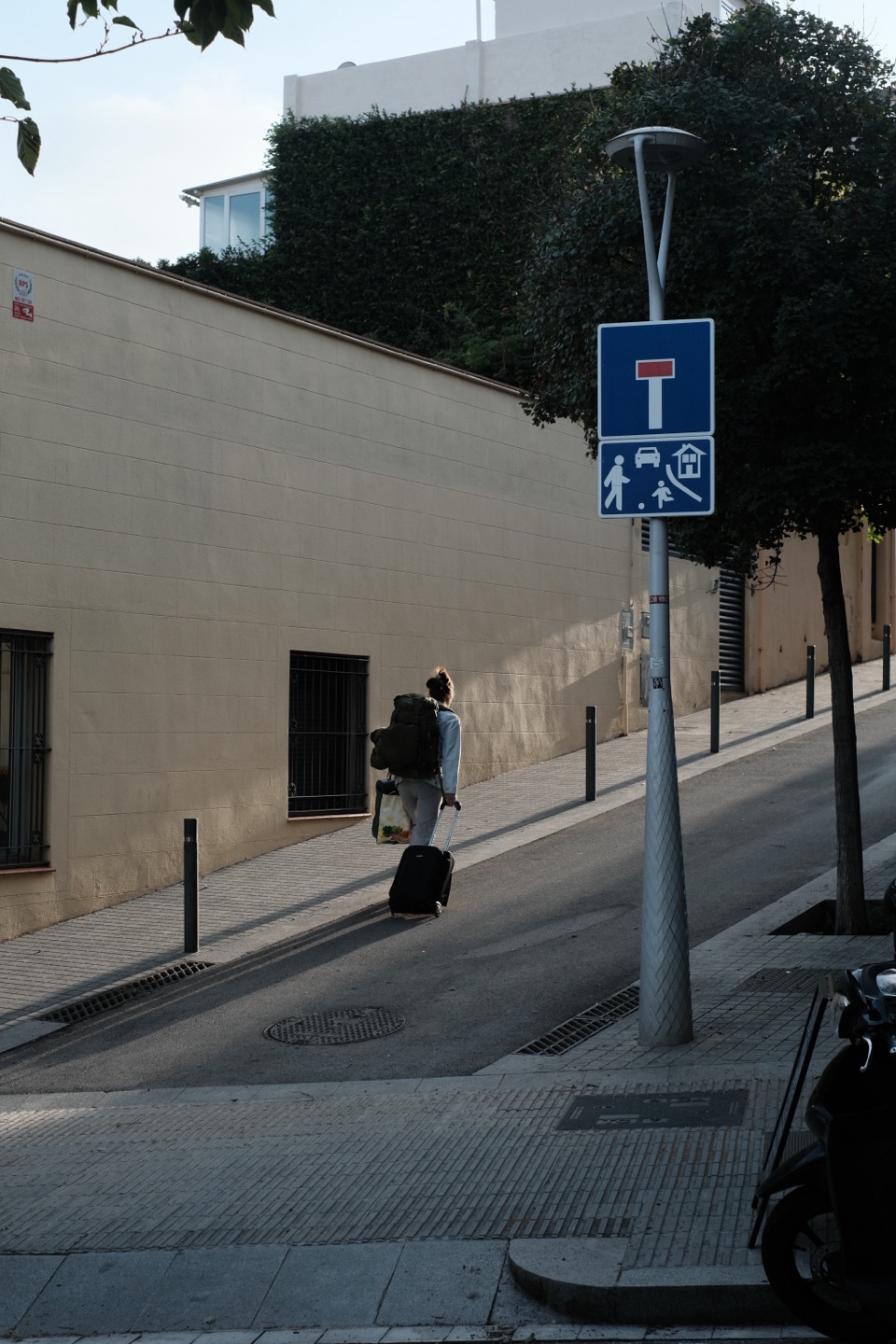
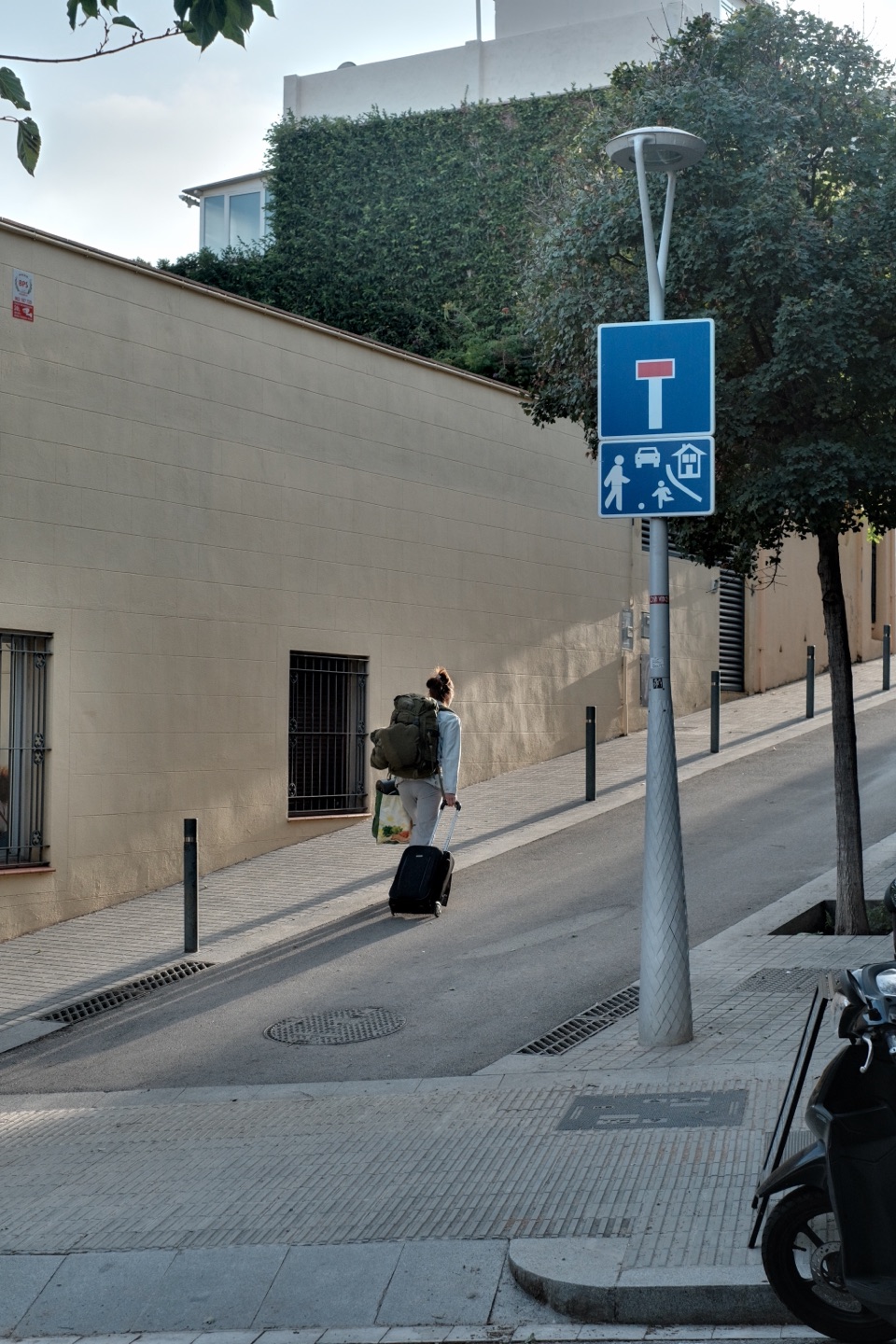
Keep highlights
Brings back windows, lamps and skies that are too bright.
Darken sky
Darkens from the top of the frame down, like a graduated filter. You choose how far down the sky reaches.
Balance light and dark
Brings back both the bright and the dark parts; the picture gets flatter.
Each mode comes in low, medium and high, for one photo, a whole roll or a batch export. On an X-T4 each photo takes about 1–3 seconds longer.
Or just say what you want.
Connect an AI app such as Claude, and it tries looks on your camera, writes recipes and exports whole folders for you. Each of these is a real session on an X-T4.
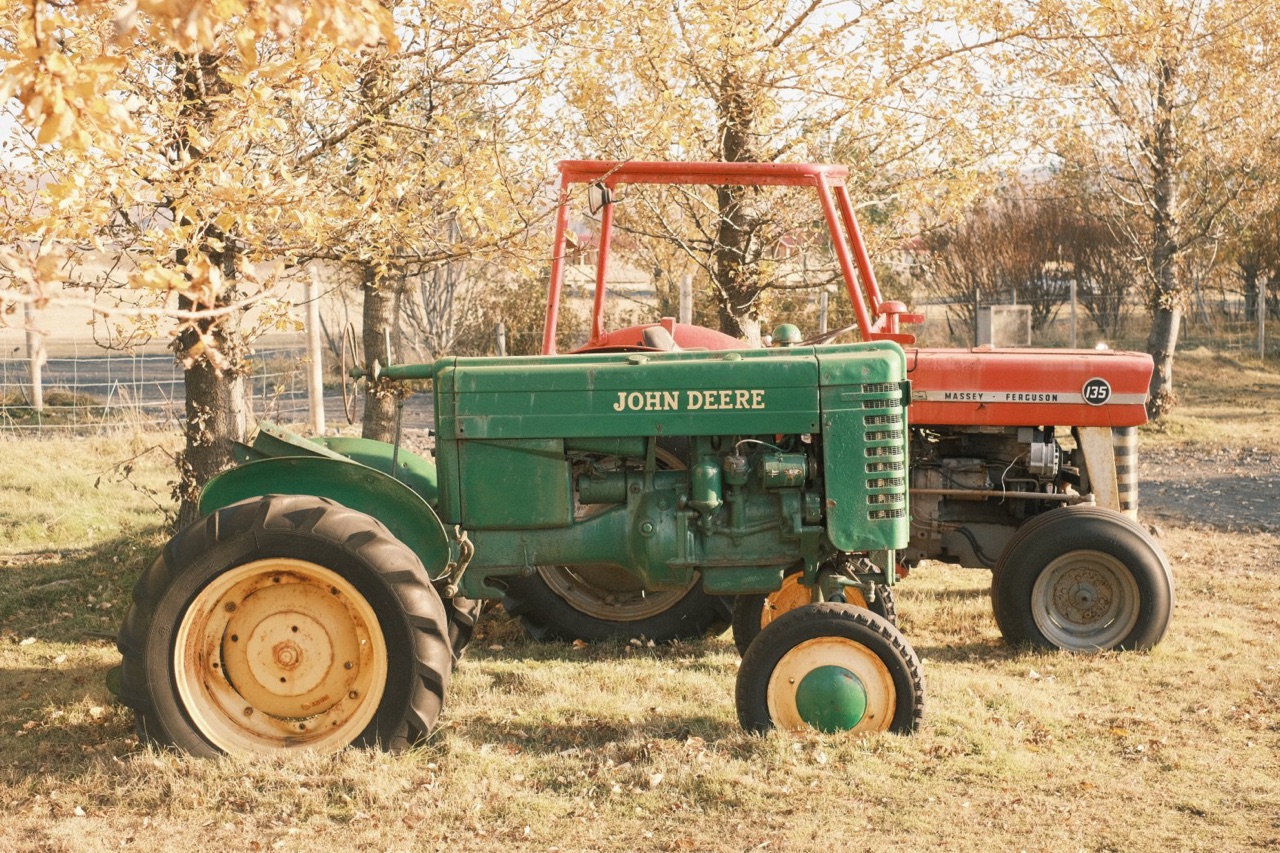
Turn a description into a recipe
Like a faded postcard from the seventies: warm, soft, a bit of grain.See the session
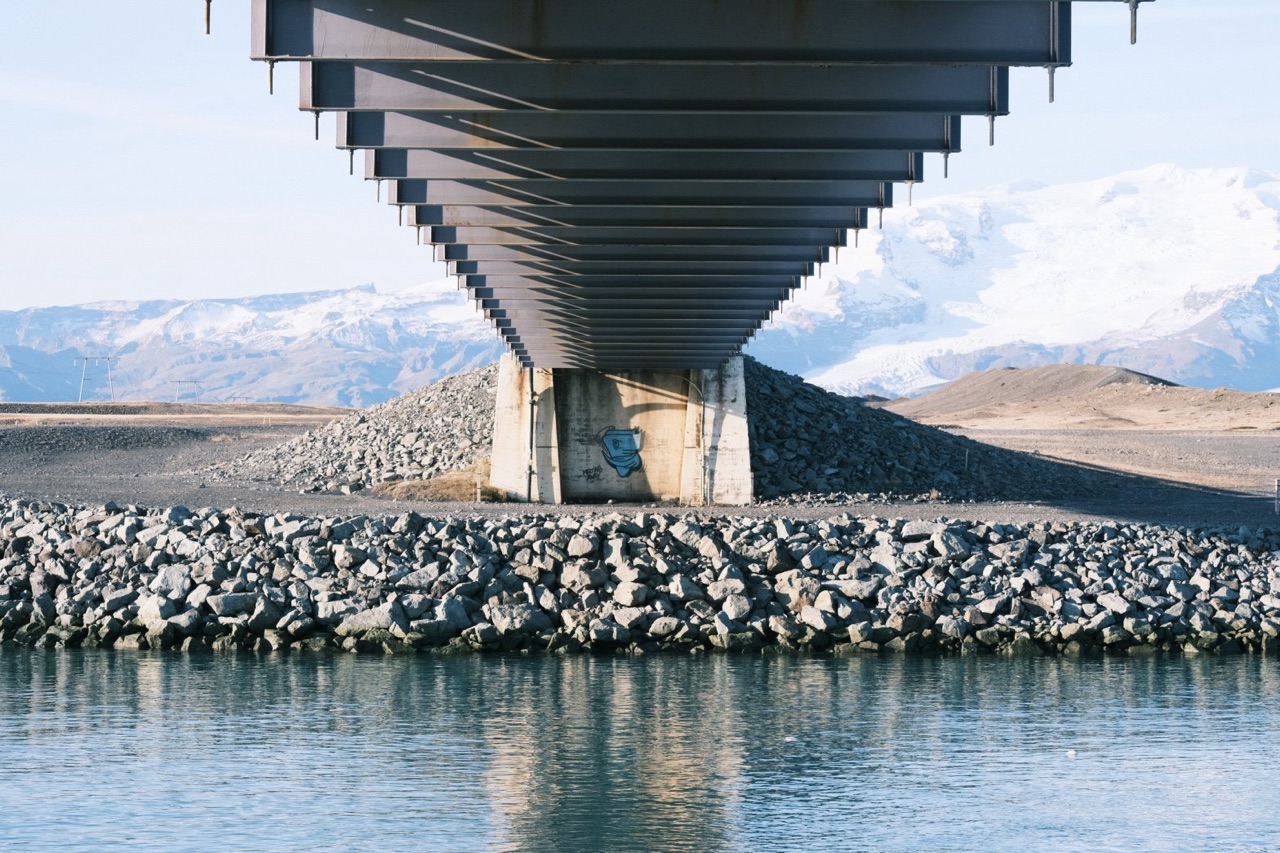
Match a reference photo
Make the horse look like this.See the session
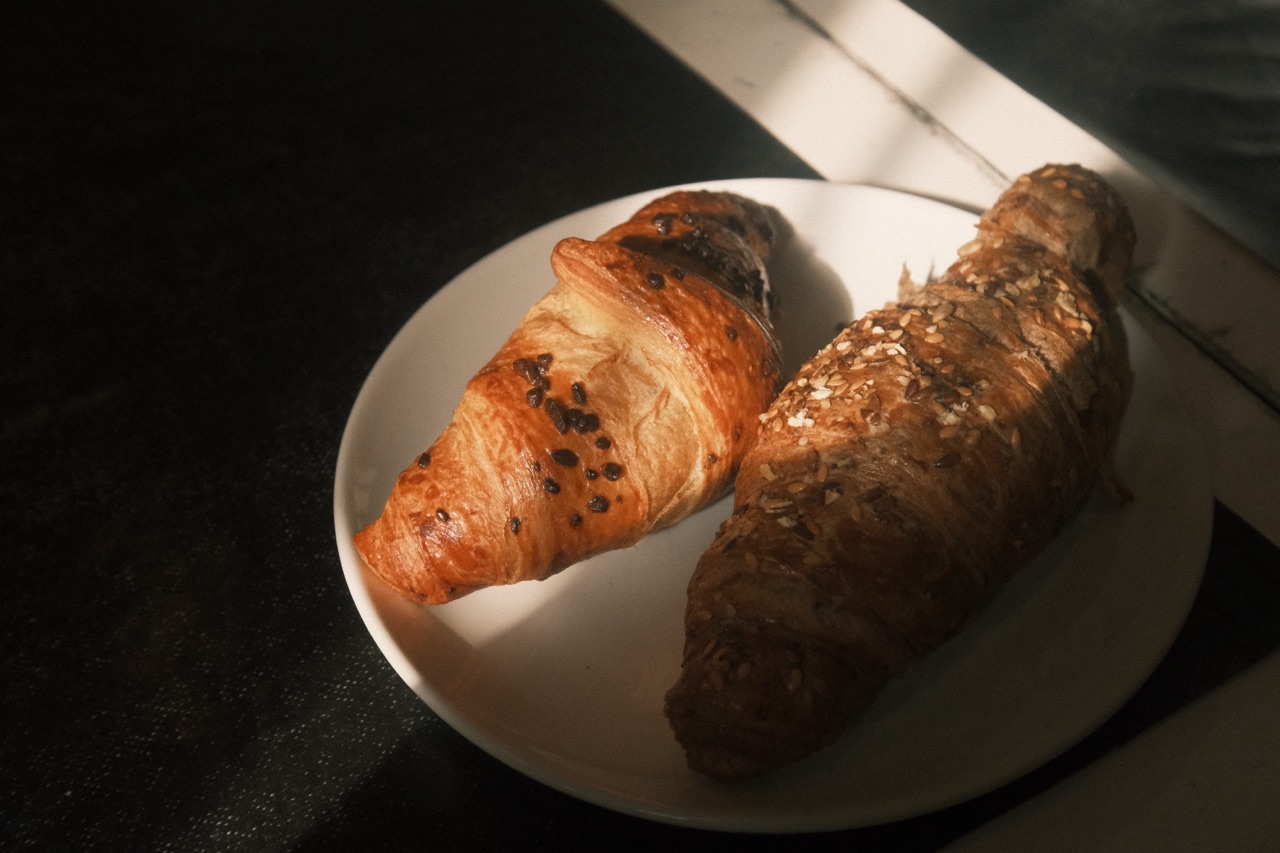
Develop a whole trip in one sentence
Convert everything from October 2024 with Faded Postcard.See the session
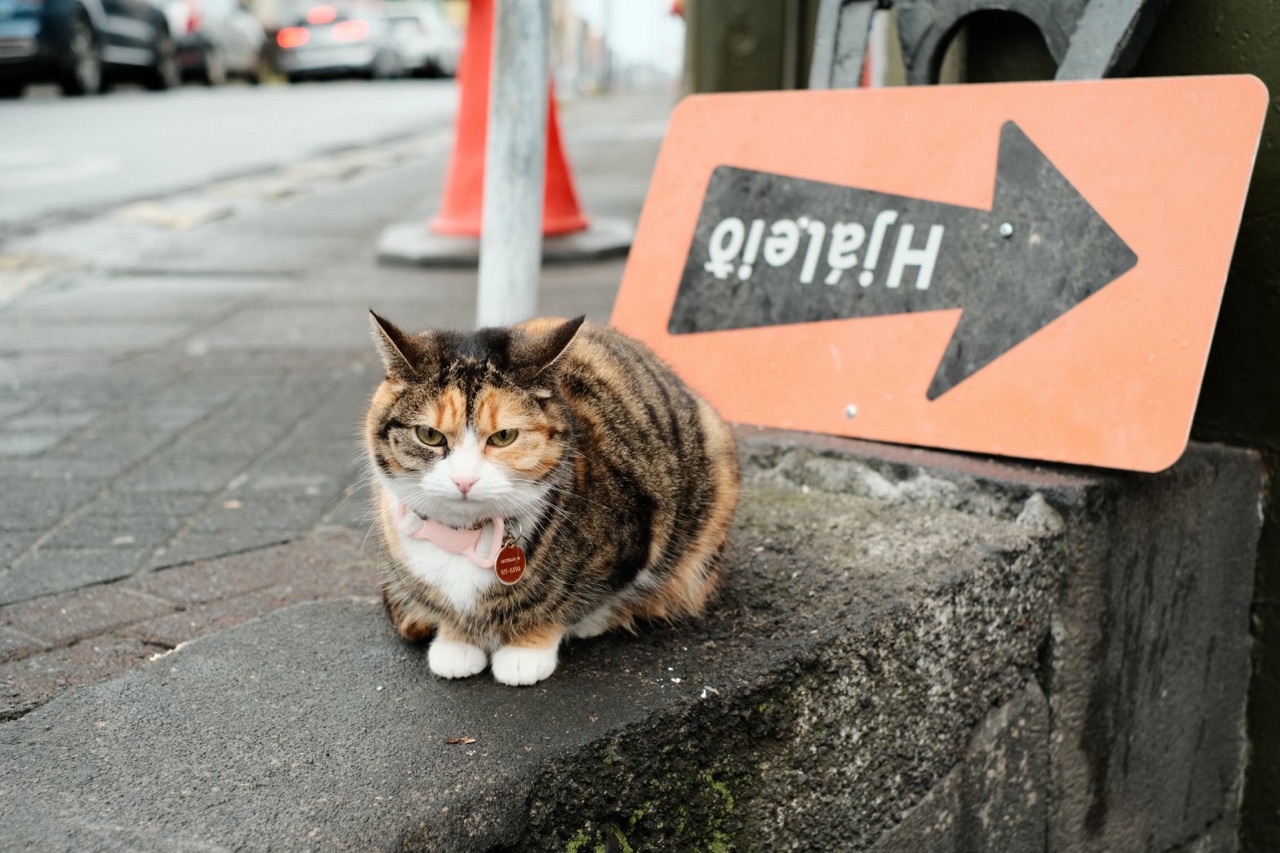
Adjust a recipe you already have
Warm the cat up, but keep the street gray.See the session
Which bodies work
Each camera can only develop RAF files it shot itself, so every body has to be tested on real hardware.
| Camera | Status | Notes |
|---|---|---|
| X-T4 | Supported | Every setting checked against the camera on firmware 2.12. |
| X-Pro3 X100V X-S10 X-E4 X-T30 II | Experimental | The X-T4's generation. Converts, but not yet tested on these cameras. Some settings may not apply, and custom slots are read-only. |
| X100VI | Experimental | Converts, but not yet tested on the camera. Some settings may not apply, and custom slots are read-only. |
| Other X bodies | Not yet | Not tested yet. Adding a body takes someone with that camera to test it. |
You'll need
- A Mac with Apple Silicon, running macOS 13 or later
- A supported camera and a USB cable that carries data
- No camera yet? Trial mode lets you explore the app with a simulated camera. It can't export.
Your photos stay on your Mac.
Yakitsuke has no account and doesn’t track you. Your photos go only to your camera, over the cable, unless you connect an AI app yourself.
Good to know
- Is this made by FUJIFILM?
- No. Yakitsuke is an independent app and is not affiliated with FUJIFILM. A camera firmware update could break it until Yakitsuke catches up.
- Does it change my RAW files?
- No. It only reads them. Developed files are new JPEG or TIFF files, saved next to the RAF by default without replacing anything.
- Is Light & Shadow edited on the Mac?
- Everything it combines was developed by the camera. The camera renders one or two more exposures, and Yakitsuke only decides how much of each goes into each part of the frame. Nothing is regraded, so the colors are still the camera’s film simulation.
- Does it change my camera's settings?
- Only when you write a recipe into a custom slot (C1–C7), and you can back up all the slots before you do.
- How much does it cost?
- It's free during the beta.
- How do updates work?
- The app checks for a new version in the background and installs it the next time you quit.
 Provia
 Velvia
 Astia
Astia Classic Chrome
 Pro Neg. Hi
 Pro Neg. Std
 Classic Neg.
 Eterna
 Eterna Bleach Bypass
 Acros
Acros Acros + R
 Monochrome
 Sepia
Sepia